Lab 1: Implementation - Extract the Invoice Total
Overview:
In this lab we will extend the Extract Data activity to extract through OCR the Invoice Total value that we missed in the previous module.
Prerequisites
Importing previous module solution
You should have the Google Drive link sent to you along with the credentials and other workshop material. This drive contains the solution for all labs. If you do not have access, ask the instructor.
-
From your Windows VM, download the
Module_1_Lab_5_completed.crpafile referred to the solution of the previous lab. -
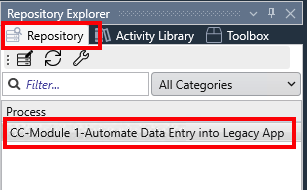
Open RPA Builder and open the project you want to overwrite with the lab solution. Make sure you open YOUR project to avoid overwriting other users' work.
-
Once opened, click the
Import Projectoption under theFilemenu: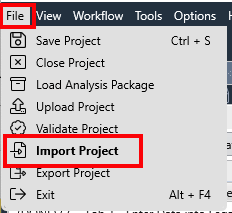
-
Click
Yesin the confirmation dialog; locate your downloaded.crpafile and clickOpento import it.
You can now continue with the lab.
Step 1: Extract the Invoice Total value from invoice
-
Open the
Extract Dataexiting activity and drag and drop a new Group just after theExtract Invoice informationone. Name it asExtract Invoice Total. -
Drag and drop a new AI OCR (file-based) step into the group and name it as
Get Invoice Total.Provide the path and file name pinned to the
Activity Parameters.attachmentsTemporaryFolderandActivity Parameters.attachmentFilename.Click on the Load design-time file button and select the
Automation Workshop Invoice.pngfile located in theLearners_Repository\Student Filesfolder.
-
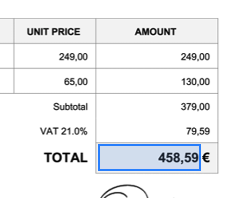
Click the Define scan area button to set the scan area of the data will be extracted as shown below. Make sure you do not include the EURO character in the selection:
For better results, make sure to set the Scaling factor to
x2.5: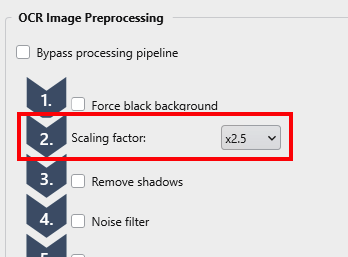
Click
Saveto continue andTestto test the settings. You should get the following results:
The exact data extracted should be:
458,59↲(including the
CRLFcharacter!)Click
CloseandOKto close the wizard. -
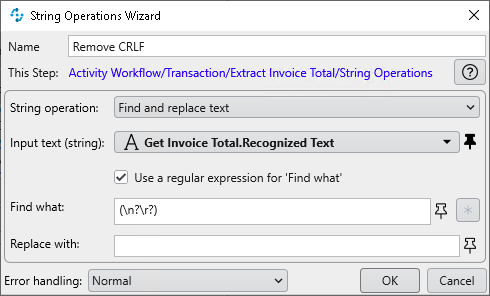
As with the other invoice data extracted in the previous module, the data we have just extracted includes the
CRLFcharacter and we need to get rid of it.Drag and drop a String Operations step and name it as
Remove CRLF. Set the String Operation toFind and replace textPin the Input text to
Get Invoice Total.Recognized TextCheck the Use a regular expression for 'Find what', set the Find what to:
(\n?\r?)and leave the Replace with empty.
Click
OKto save and close. -
You can notice that the extracted text (
458,59) contains a,as the decimal separator and we must convert it to.before moving on.Drag and drop a new String Operations step and name it as
Change decimal separator. Set the String Operation toFind and replace textPin the Input text to
Remove CRLF.Result.Set the Find what to
,and Replace with with.: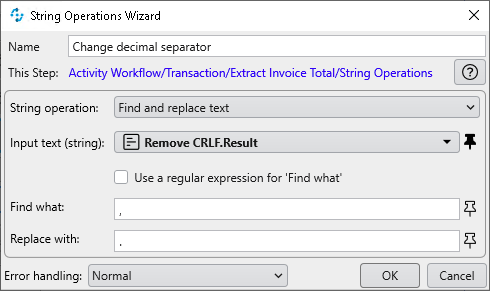
-
Drag and drop a Set Variable step and name it as
Set invoiceTotalSet the variable to
Activity Parameters.invoiceTotalsand value toChange decimal separator.Result: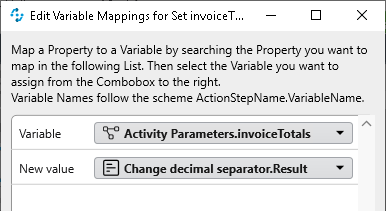
Click
OKto save and close.
Please proceed to Lab 2: Implementation - Currency Change