Lab 5: Test the Composer Flow
Overview:
We have completed all the development for this Module. Now, it’s time to perform an end to end test.

Step 1: Prepare Salesforce Test Data
-
Login into the Salesforce Developer ORG and make sure you have the
Salesapp opened. If not, search theSalesapp from the App Launcher.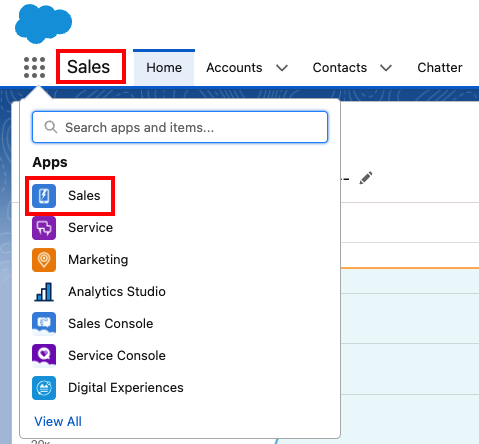
-
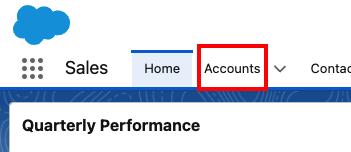
Click on the Accounts tab:
-
Click the
Newbutton to create a new account.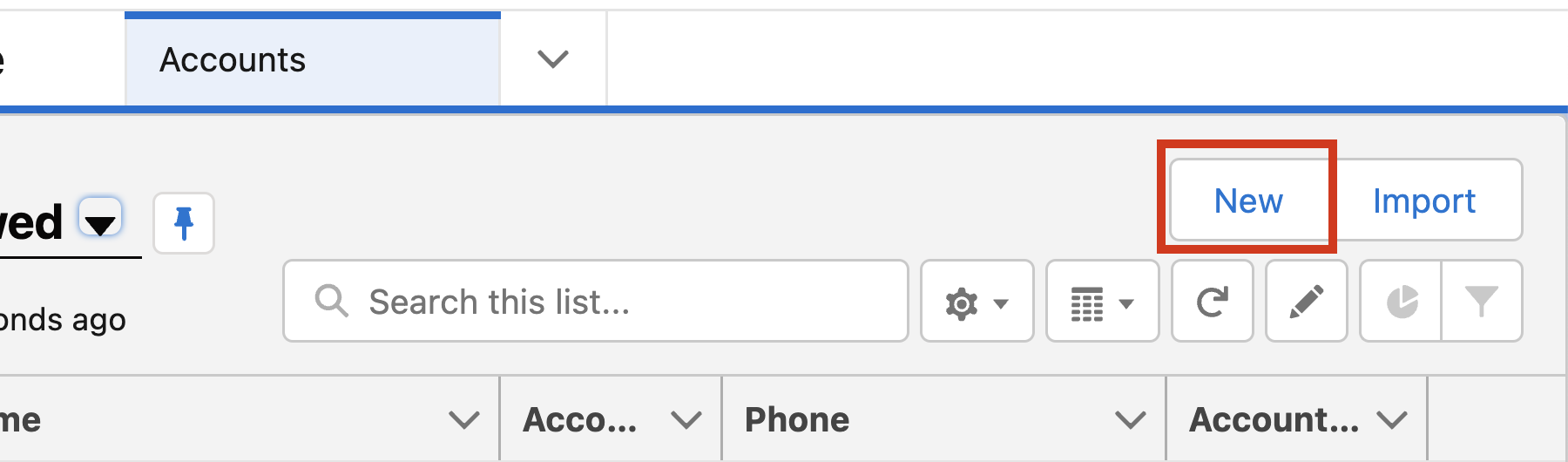
If you’re requested to select the Account type record, make sure to select the
Accountone. -
Enter
<your initials>-Northern Trail Outfittersas the account name and clickSave.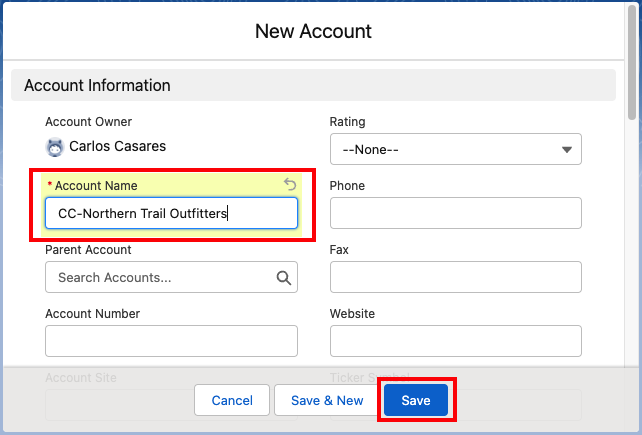
Step 2: Start Test Execution
-
Go back to MuleSoft Composer console and open the
<your initials> - Sync Salesforce with Financial Systemflow. ClickTestto start the test.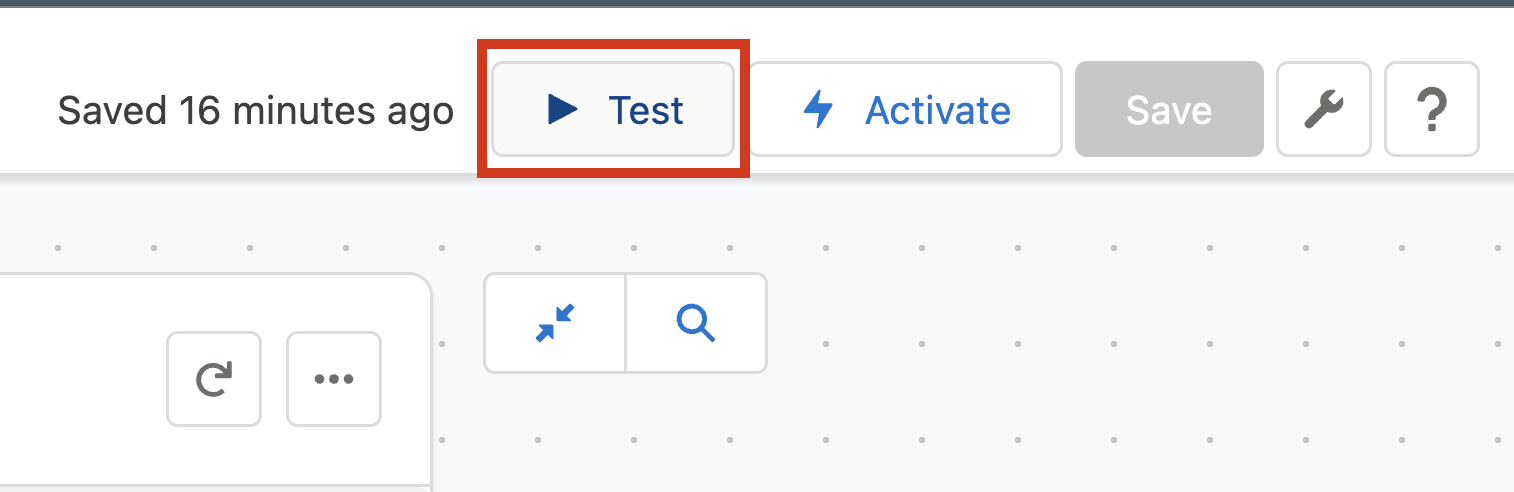
-
Wait for the test to start and the message
Awaiting trigger eventto appear.
Step 3: Create a New Invoice on Salesforce
-
Back in Salesforce, on the
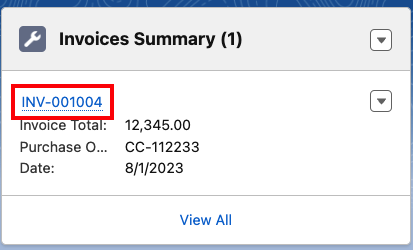
<your initials> - Northen Trail Outfittersaccount detail page from the Invoices Summary related list on the right click theNewbutton to create a new invoice.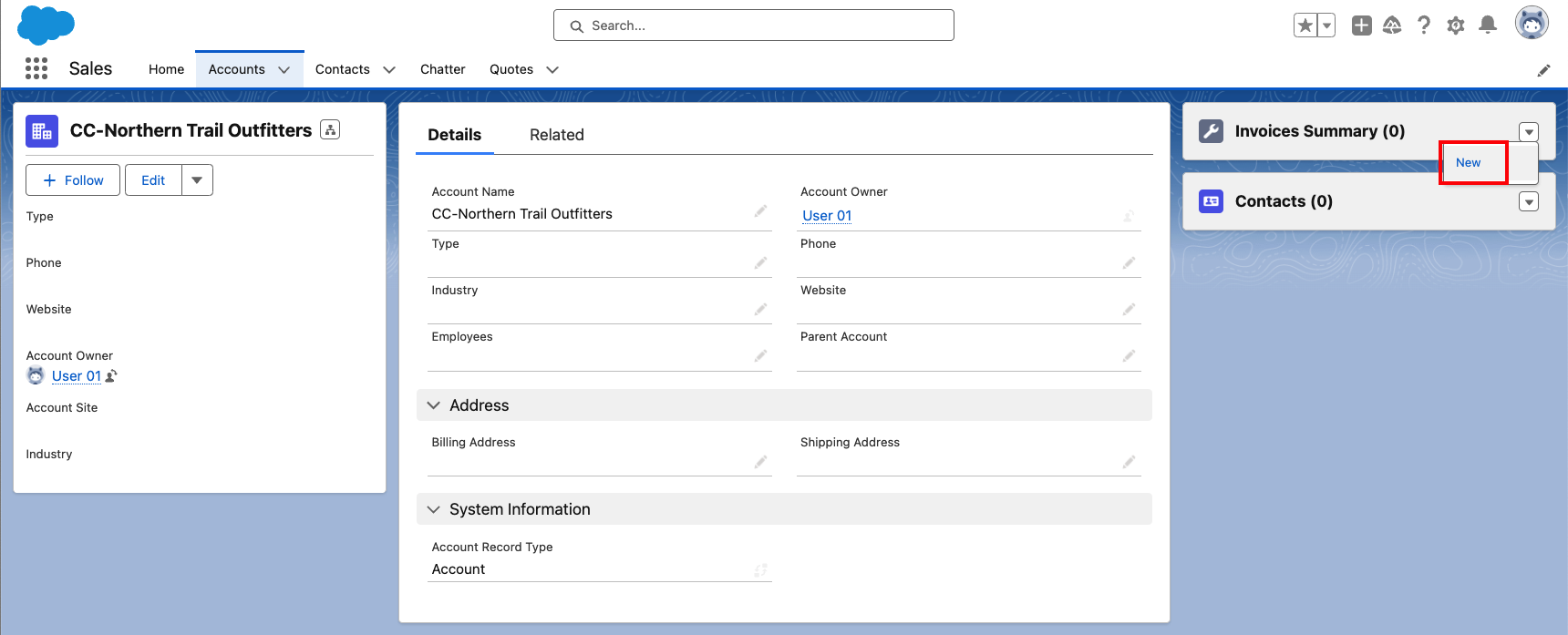
-
Enter the following information and click
Save.Field Value Purchase Order<your initials>-<any string>Date<any date>Due Date<any date>Invoice Total<any number>
Remember to use the right prefix in the Purchase Order field. You are filtering the invoices based on this in the Composer trigger
Step 4: Check Composer Test Execution Results
-
Now that you have saved the new invoice quickly go back to composer and wait for the event to be processed. A "Processing" message with a spinner should appear.

-
Once the test is completed we can expand the test output for each step part of the composer flow. Next we have the Trigger event test output:
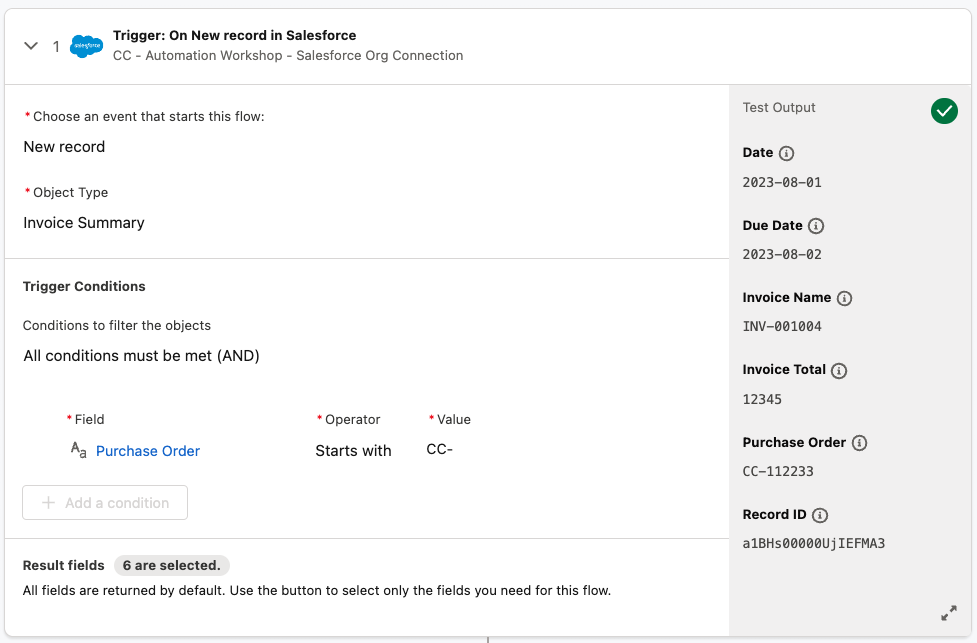
-
Next an example for the RPA Invoke Process action test output.
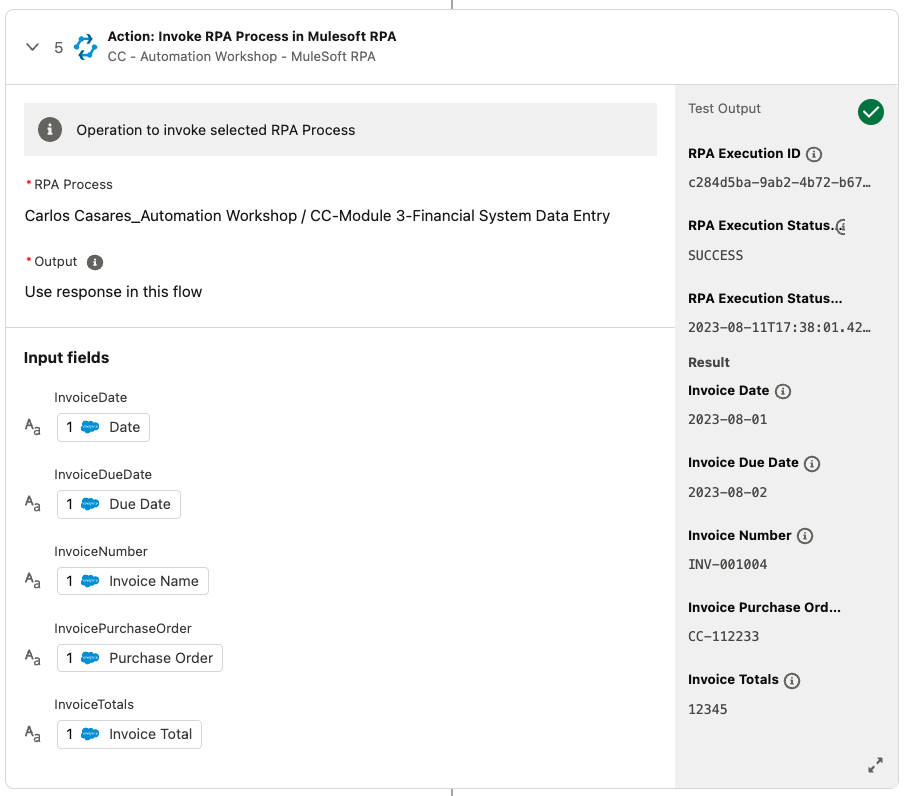
-
And an example for the Update Invoice Record action test output.
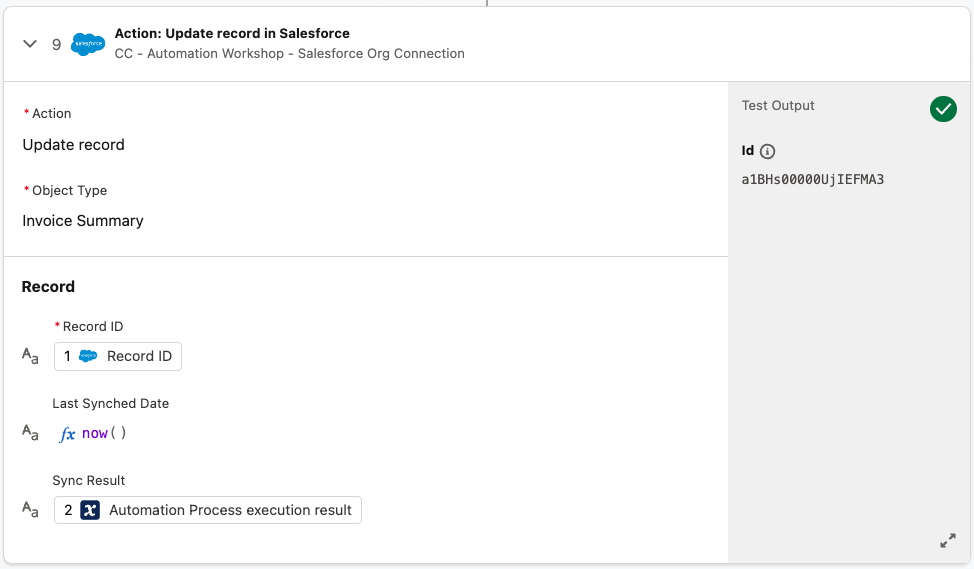
Step 5: Check RPA Process Execution on RPA Manager
-
Login into the MuleSoft RPA Manager and reach out the Process detail page.
Here you should see in the Run Results section an execution completed successfully.
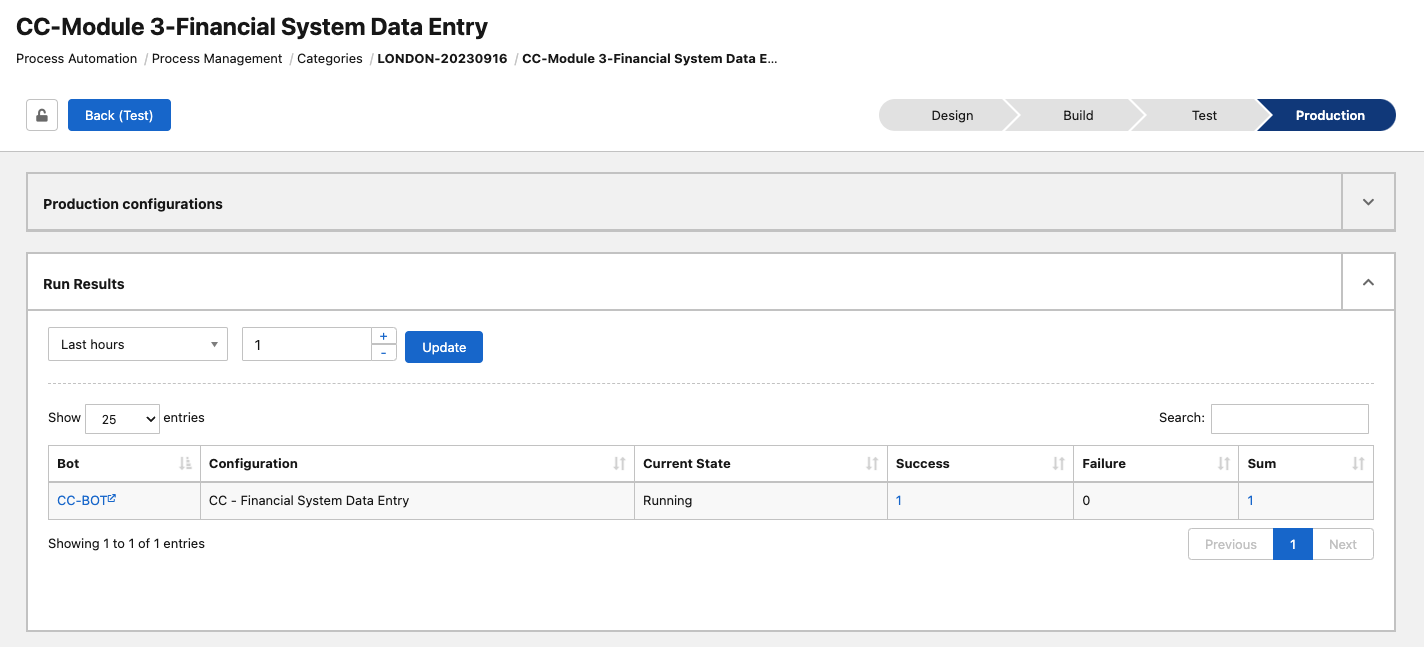
-
Click on the number in the Success column to get more information on the runs.
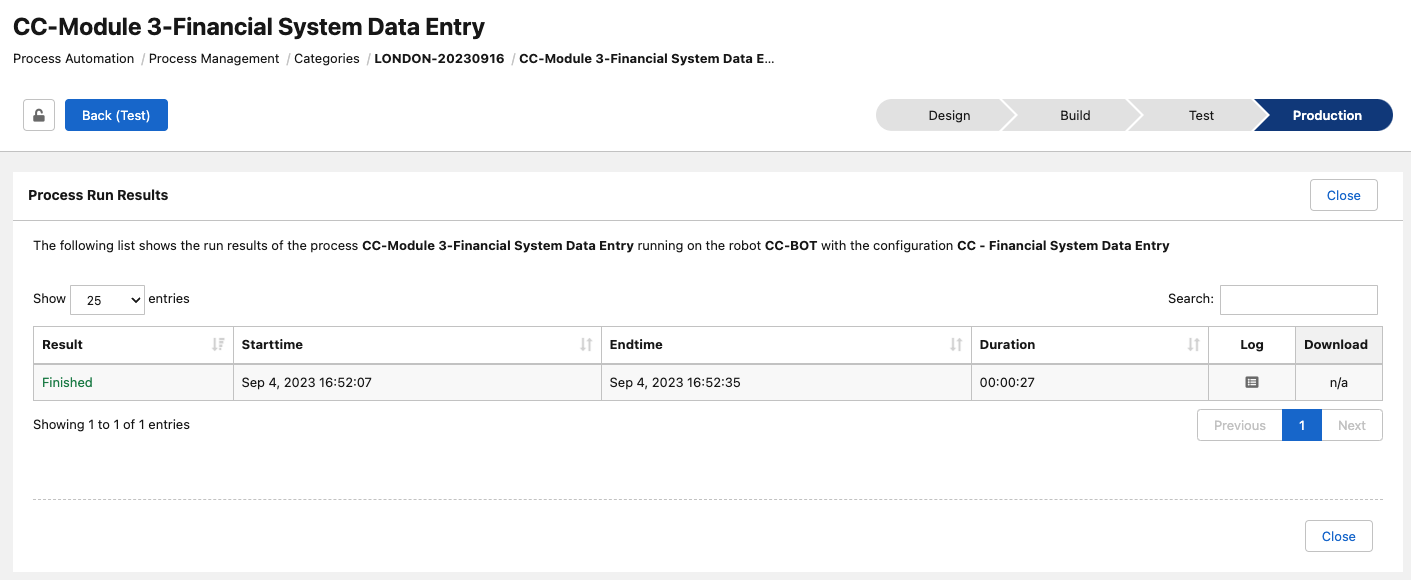
Step 6: Check Invoice Record on Salesforce
As last step of the composer flow the invoice record in Salesforce should be updated setting the Last Synched Date field with the output provided by the RPA Process Execution (result attribute).
-
Click on the just created Invoice Summary record:.
-
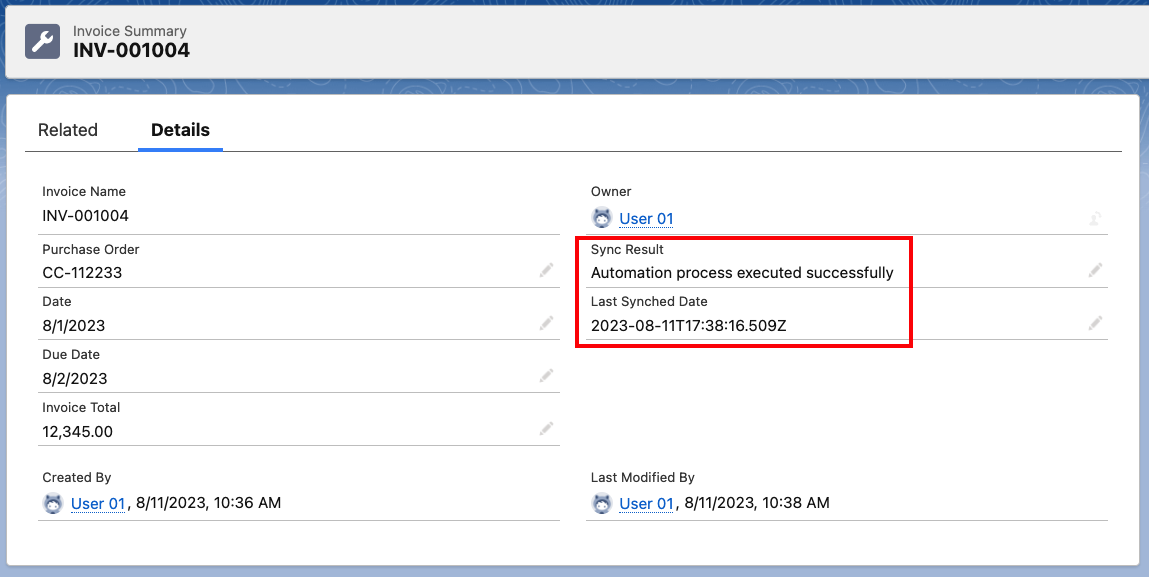
Confirm the Sync Result and Last Synched Date fields have been correctly updated: